Web Dashboard Guide
The HomelabARR CE web dashboard gives you a visual interface to browse, deploy, and manage 100+ self-hosted applications without touching the command line.
Accessing the Dashboard
Open your browser and navigate to:
http://<your-server-ip>:8084
Replace <your-server-ip> with the IP or hostname of the machine running HomelabARR CE.
Logging In
Click Sign In in the top right corner. A default admin account is created on first launch.
| Field | Value |
|---|---|
| Username | admin |
| Password | admin |
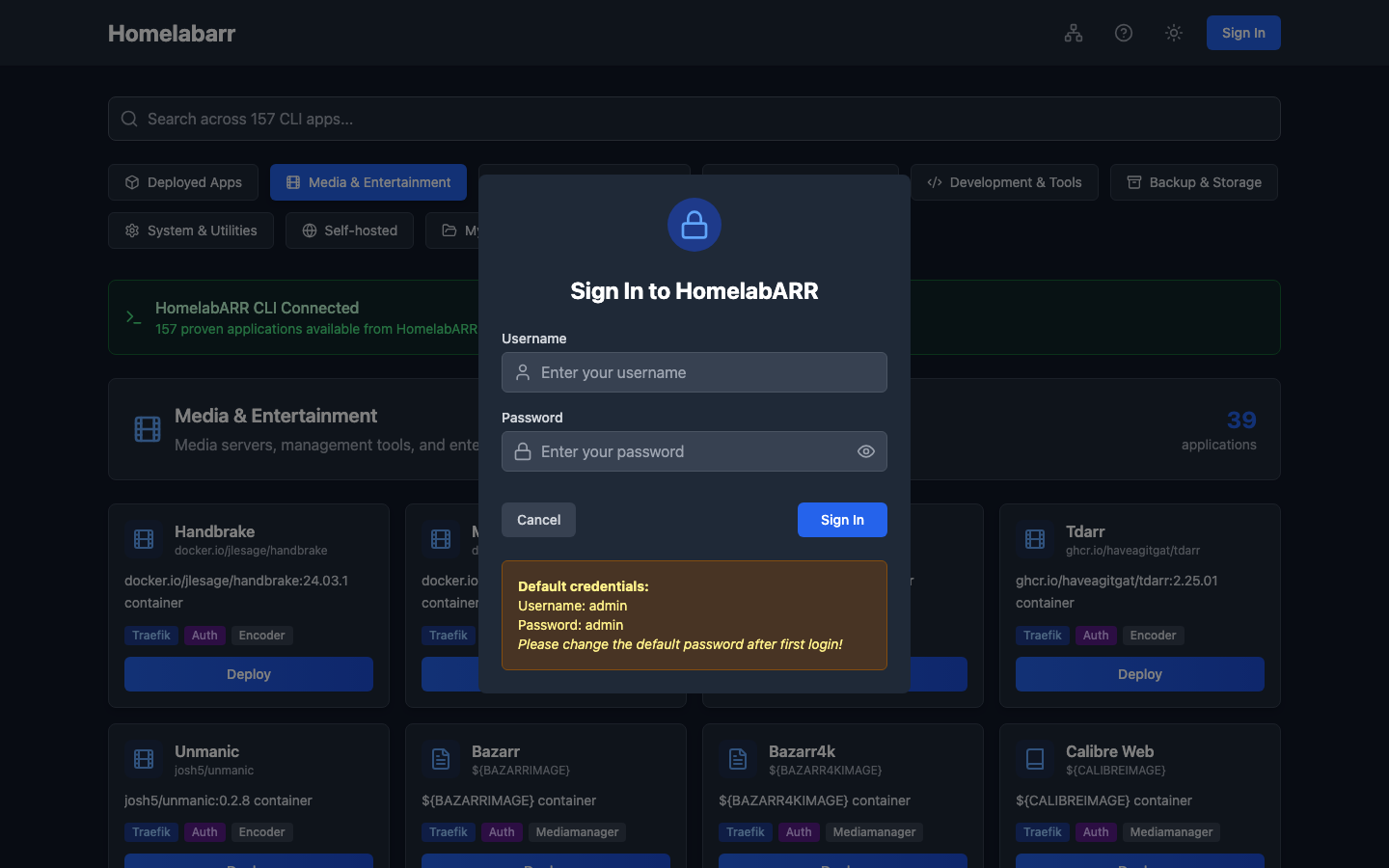
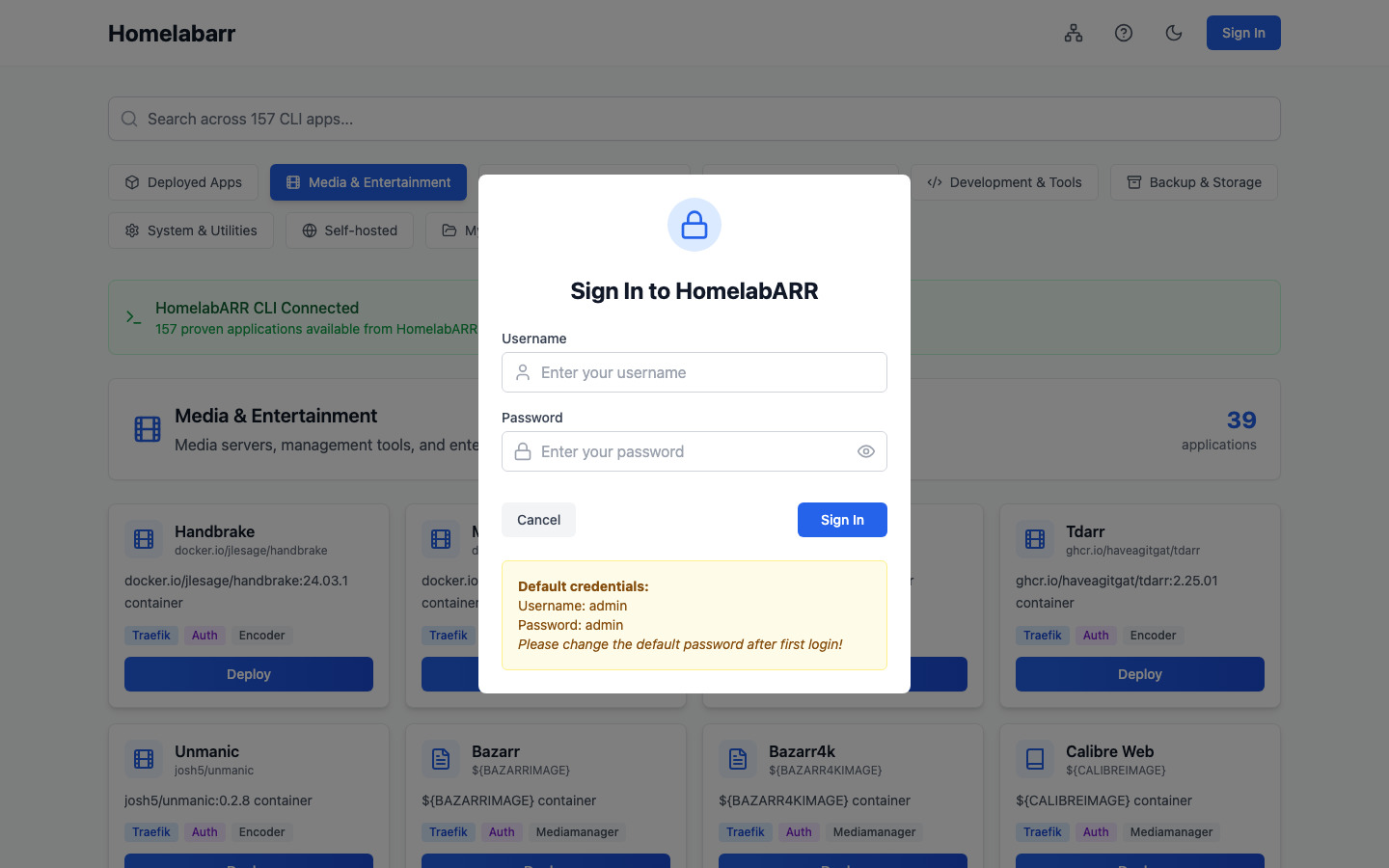
Change the default password immediately
After your first login, go to User Settings and change the default password.
Browsing the App Catalog
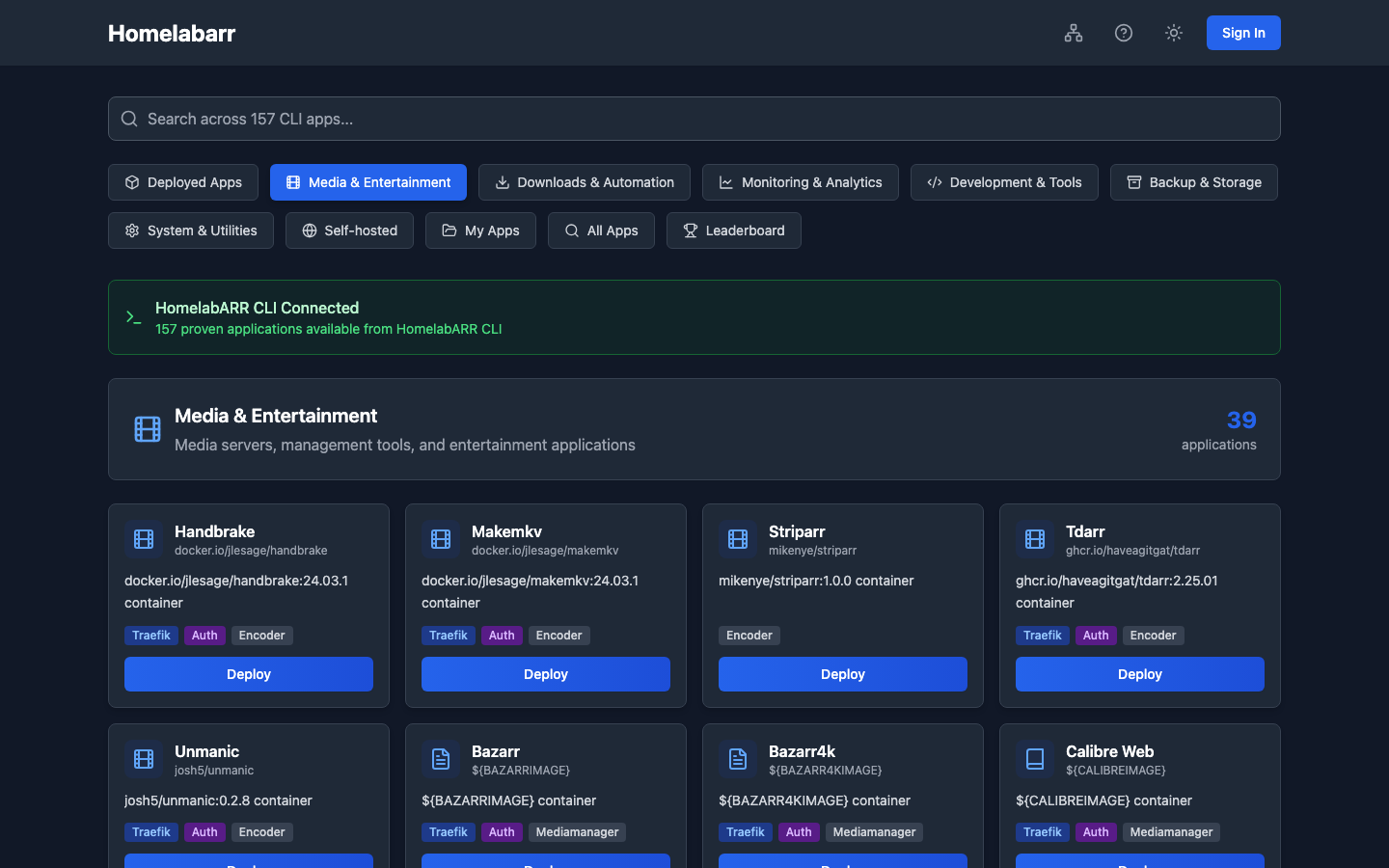
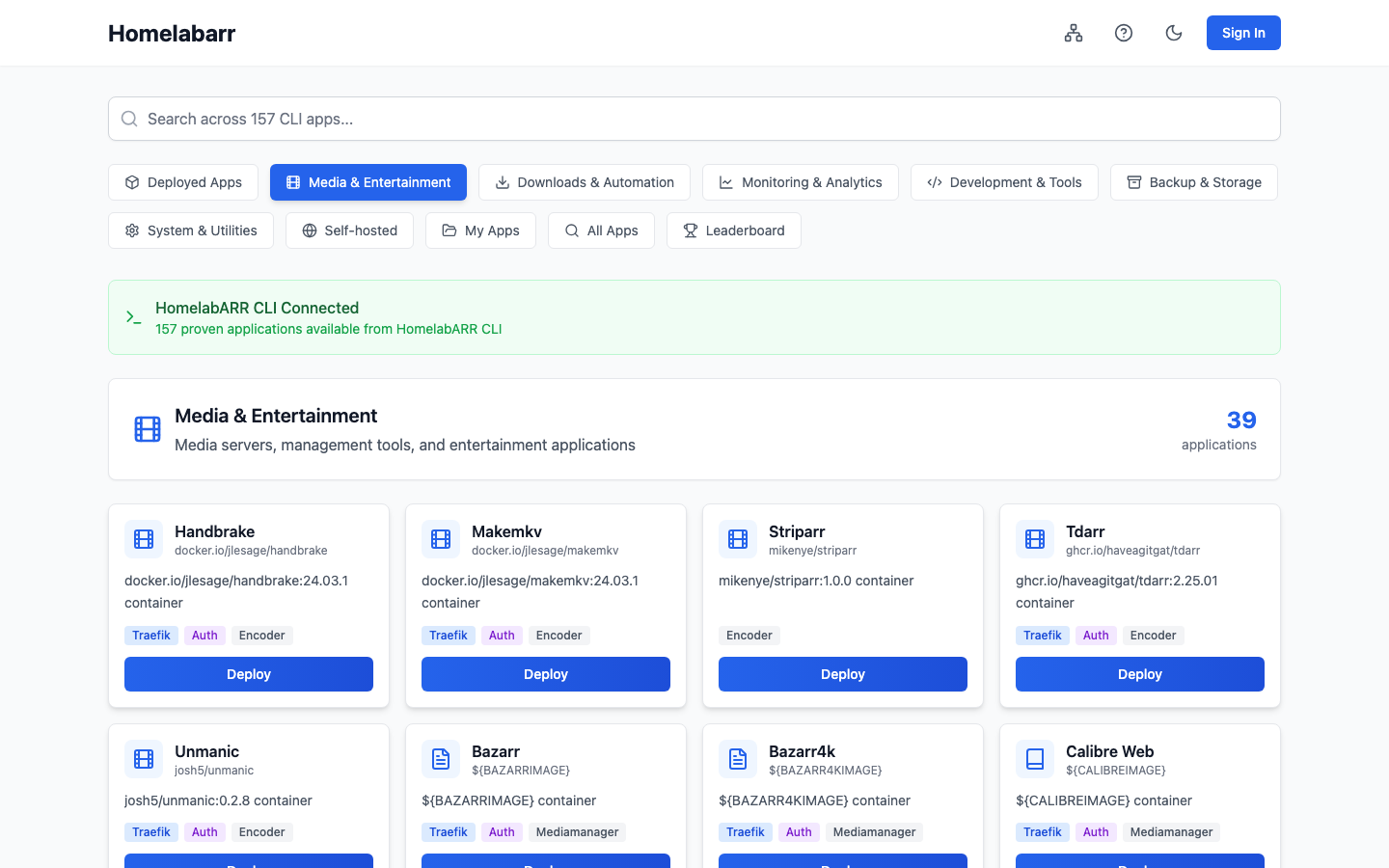
The dashboard organizes applications into category tabs along the top:
- Deployed Apps -- containers currently running on your system
- Media -- media servers (Plex, Jellyfin, Emby)
- Downloads -- download clients (qBittorrent, SABnzbd, Deluge, NZBGet)
- Management -- media managers (Radarr, Sonarr, Prowlarr, Bazarr, Lidarr, Readarr)
- Requests -- request tools (Overseerr)
- Monitoring -- monitoring and stats (Tautulli)
- Self-Hosted -- general self-hosted apps
- AI Tools -- AI/ML applications
- System -- system utilities (Portainer, Pi-hole)
- All Apps -- every app in one view
- Leaderboard -- community deployment stats
Each app card shows the application name, description, Docker image, and available deployment modes (Traefik, Auth, category tags). Use the search bar at the top to filter by name across all categories.
Deploying an App
-
Pick an app. Click any app card to open the deploy modal.
-
Configure. The modal shows fields pulled from the app's YAML template:
- Environment variables -- pre-filled with defaults (timezone, user ID, app data folder). Edit as needed.
- Ports -- host-to-container port mappings. The dashboard checks for conflicts automatically.
- Volumes -- persistent storage paths, defaulting to
/opt/appdata/<app>.
-
Choose a deployment mode:
Mode What it does Local / Standard Direct port access on the host, no reverse proxy. Best for testing. Traefik Deploys behind Traefik with automatic SSL and domain routing. Production-ready. Traefik + Authelia Adds multi-factor authentication on top of Traefik. Maximum security. -
Deploy. Click the deploy button. The backend loads the YAML template, injects your configuration, writes a temporary compose file, and runs
docker compose up -d. -
Watch progress. A real-time progress modal opens, streaming deployment output via Server-Sent Events (SSE). You will see Docker pulling images, creating networks, and starting containers live.
Deployment IDs
Each deployment gets a unique ID. You can use this to track status via the API at /deployments/<id>/status if the modal closes.
Container Management
Switch to the Deployed Apps tab to see all running containers.
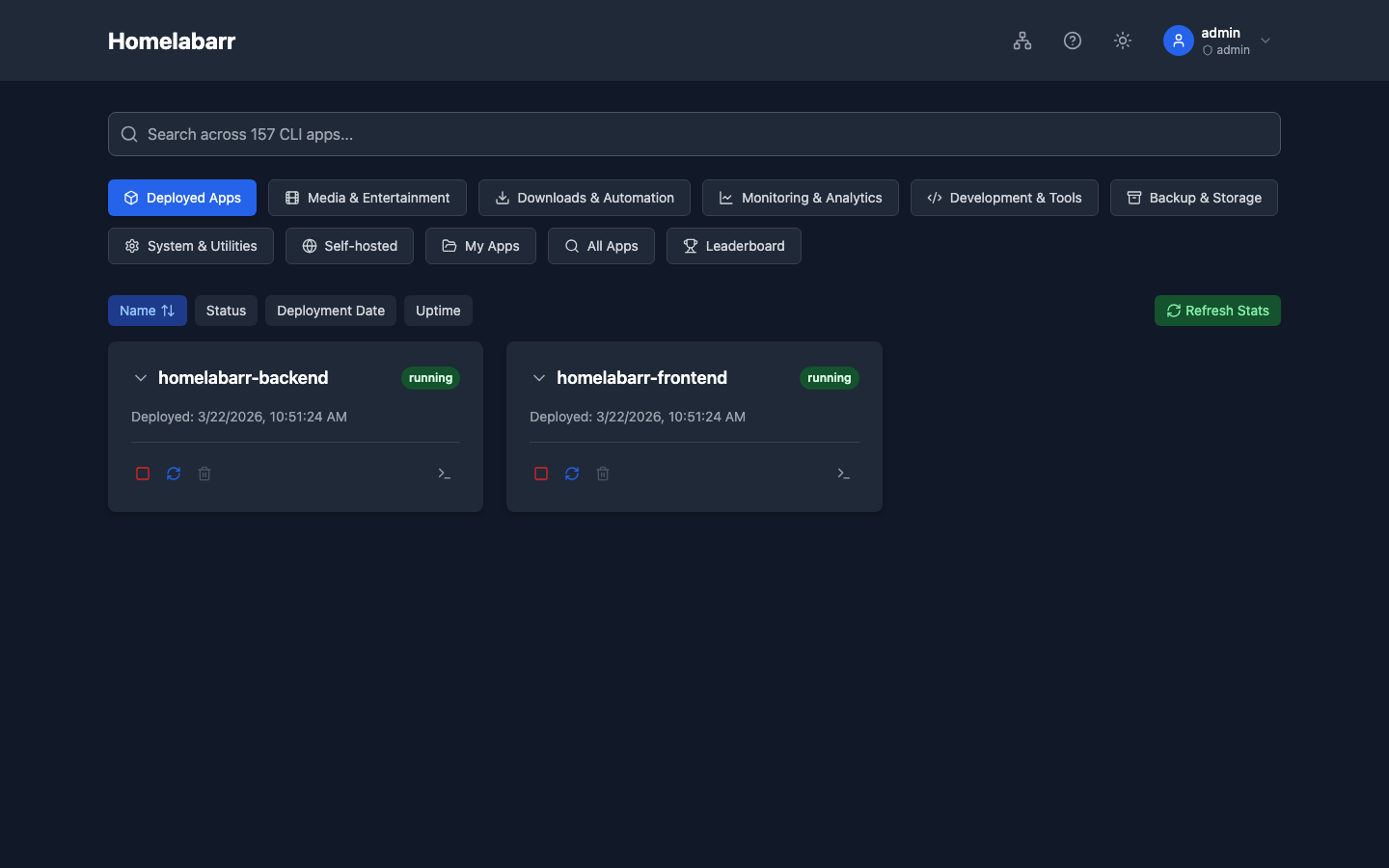
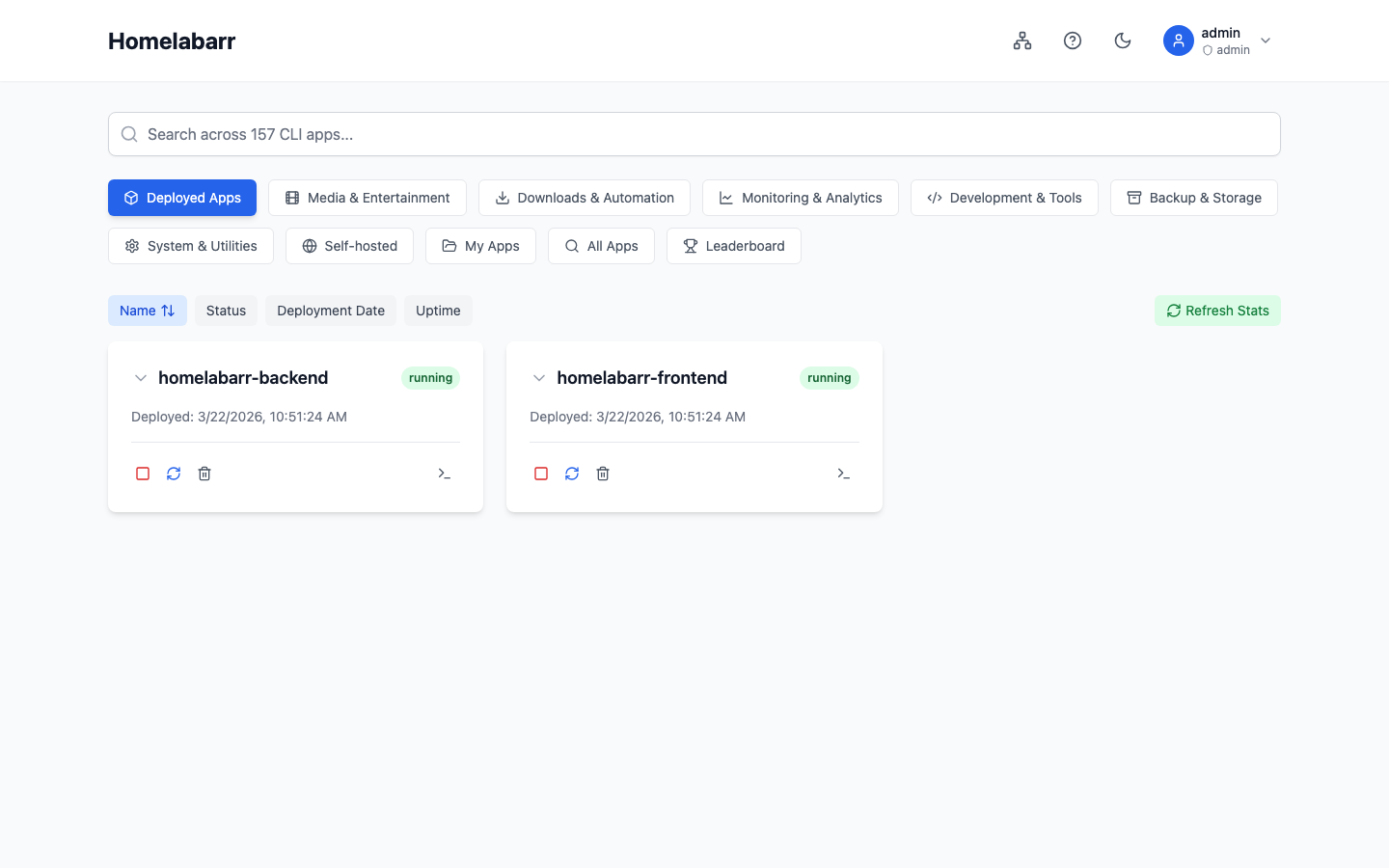
Each container card shows:
- Container name, image, and current state (running, stopped, exited)
- Uptime and status text
- Port mappings
Actions
| Button | What it does |
|---|---|
| Start | Starts a stopped container |
| Stop | Gracefully stops a running container |
| Restart | Stops and restarts the container |
| Remove | Removes the container (optionally with volumes) |
| Logs | Opens a log viewer showing recent container output |
Stats on demand
Container CPU, memory, and network stats are available but not loaded by default to keep the dashboard fast. Add ?stats=true to the containers API call or use the stats button if present.
Viewing Logs
Click Logs on any container to open the log viewer. Logs are fetched in real time from the Docker daemon. By default the last 100 lines are returned. Use this as your first troubleshooting step when a deployment fails or an app misbehaves.
User Settings
Click your username in the top-right corner to access the user menu:
- Change Password -- enter your current password and a new one (minimum 6 characters)
- Manage Sessions -- view active sessions, revoke sessions from other devices
- Logout -- end your current session
Admins can also access user management to create new accounts or view all users.
Port Manager
The dashboard includes a built-in port manager accessible from the toolbar. It queries Docker for all ports currently in use and can find the next available port in a given range. Use this before deploying to avoid port conflicts.
Tips
Use Local Mode for testing
Local/Standard mode strips Traefik labels and external networks, so apps work immediately on localhost:<port> without any proxy setup. Switch to Traefik mode when you are ready for production.
Check container logs first
If a deploy finishes but the app is not reachable, check the container logs. Common issues: missing environment variables, port conflicts, or permission errors on volume mounts.
Search is your friend
With 100+ apps, use the search bar instead of scrolling through categories. It searches across app names and descriptions.
Theme toggle
Use the theme toggle in the top bar to switch between light and dark mode. The default theme for all deployed apps is dark.
Refresh the catalog
If you add new YAML templates to the apps/ directory, click the refresh button to reload the catalog without restarting the server.